Quizzes have some additional visibility controls not found within other modules. Usually an issue with these settings is what prevents students from seeing their quiz grades. To access the specific visibility settings for a quiz, turn editing on and to the right of the quiz select Edit and then Edit settings from the dropdown menu. Scroll down to Review Options. This section allows you to control what students see and when:
My students can't see their quiz grades. What should I do?
Known Issues
- Whole forum grading
Currently, the Whole Forum Grading interface for Moodle forums displays students that have been suspended from the course. Although these students are displayed in the grading interface, they do not have access to the Moodle course site. This issue has been reported on the Moodle website. A tracker for this issue can be found here: https://tracker.moodle.org/browse/MDL-68437 - Max grade in ratings
The maximum grade for a Moodle forum cannot be updated once ratings have been assigned for that forum. Normally, Moodle allows instructors to change the maximum grade and recalibrate grades according to the new maximum. At this time the maximum grade is locked and cannot be changed. For this reason, it is important to make sure that the maximum grade is correctly set before entering any ratings for that forum. https://tracker.moodle.org/browse/MDL-56949 - User session issues in Hypothesis (Resolved June 2021)
Hypothesis is currently encountering an issue in which users that click on a Moodle external LTI link to some Hypothesis article are not able to access the group interface that allows students to interact with other members of the class including the instructor. This issue occurs only on websites that use the Hypothesis web app and is due to a incompatibility issue between the Hypothesis LTI app and their web app. Hypothesis is aware of this issue and is working on a solution. As a temporary workaround, Hypothesis recommends that instructors save articles on problematic sites as PDFs, store them on their Google Drive, and then connect from Moodle to the articles on Google Drive by following these steps:- Using Chrome, go to the page you want to use
- Click on 3 dots in upper right and select Print
- For destination, select Save to Google Drive and then Save
- I would recommend repeating the above for all of the readings and then relocate them to one folder in Google Drive with share settings set to Public, just to make the process more efficient
- Create an external tool Hypothesis link in Moodle
- After the tool is created, click on the link to Open in New Window and select Select PDF from Google Drive
- Choose your MC account
- Select the desired PDF
- Edpuzzle Browser Issues
Edpuzzle is currently experiencing an issue in which instructors encounter intermittent errors when using Chrome or Microsoft Edge to create Edpuzzle assignments using the Edpuzzle tool in Moodle. This issue has been reported to Edpuzzle. As a temporary workaround, it is recommended that users use Firefox or Safari when connecting from Moodle to Edpuzzle.
How can I grant extended testing time to students with accommodations?
If you are using Moodle to provide online tests to students, it is still possible to provide extended time or have students take a course at an alternative time. As with normal quizzes and tests, students should be granted extended time as indicated on that student's form provided by the SRC. Extended time can be granted to students on any Moodle quiz, regardless of whether lockdown or video proctoring controls have been applied to the quiz.
To grant extended time for a Moodle Quiz, follow these instructions:
- Enter the Moodle course site
- Click on the quiz you want to add an override for
- Click the gear menu in the upper-right corner and select User overrides
- Click Add user override
- In the Override user field, select the student’s name from the list of course participants
- Under Time limit, enter the appropriate amount of time required
- Click Save
- The window of time in which the student can take the quiz
- The number of attempts a student is allowed to take a quiz
- Enter the Moodle course site
- Click on the assignment you want to add an override for
- Click the gear menu in the upper-right corner and select User overrides
- Click Add user override
- In the Override user field, select the student’s name from the list of course participants
- For Due date, modify the due date to allow for the appropriate amount of time
- Click Save
How can I shuffle the order of my quiz questions?
If you want to shuffle all the questions in your quiz, so that each students gets the same questions but in a different order:
- From your main course page, click the name of the quiz. When you're on the landing page for the quiz, click the gear menu and choose Edit quiz
- On the Edit quiz screen, just check the Shuffle box
- At the beginning of any page, click the Add menu and choose a new section heading
- This will add a Shuffle box at the top of the new section that you can click to shuffle the questions in that section. If you want to give your section a title, click the pencil icon (seen next to "New heading" below), enter your title, and hit the Enter key when finished.
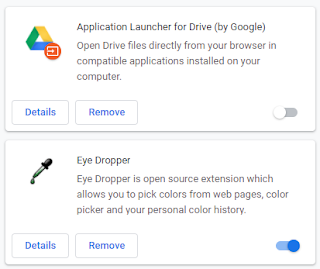
How can I add or remove extensions in Chrome?
- Click on the 3 dots in the upper right corner of any Chrome window
- Select Settings from the list of options
- Select Extensions on the left side of the screen

How can I update all of the due dates for my course quickly?
You can use the Dates Report to set multiple due dates at once.
To set due dates for individual assignments follow these steps:
- Click the gear icon in the upper right corner of screen
- Select More from the list of options
- Under Reports click Dates
- Using the Activity type dropdown menu, select Assignments
- Click Expand All
- Choose a due date for each assignment. If the due dates for an assignment are grayed out, you will need to click on Enable to the right of the due date to enable this option. Be aware that if you copied the assignment from a previous offering of the class, the year may need to be updated in addition to the month and day.
- The Allow submissions from and Cut-off date may remain disabled
- Click Save changes
How can I view my Moodle course as a student?
There are times when you may find it helpful to see your Moodle course the way it looks to your students. To activate student view, click on your profile picture in the upper right and from the dropdown menu select Switch role to...